The Minecraft launcher is the login and downloader front-end to the stand-alone client. It is responsible for downloading the main Java packages, including minecraft.jar, which holds the code and resources of the game such as textures, and LWJGL. It also acts somewhat like a basic and easily bypassable copy-restriction by forcing the user to login to a paid account when running for the first time. It is possible to use the launcher to run versions of Minecraft from nearly any era, however some versions are still not included on the launcher, such as Indev, Minecraft 2.0 and any of the Beta 1.9 pre-releases. The current launcher is the sixth launcher for Minecraft, and the second that was built to automatically update itself.
Every time the launcher is executed, it checks a specific directory where Minecraft stores its files called .minecraft. It checks a file called "launcher_profiles.json" for login credentials. If the file does not exist, is corrupt, or no user is logged in, the user must login with a valid premium account, otherwise the user will be directed to play the Demo version or purchase the game.
When logging in, the launcher will first try to verify the login. If a valid "launcher_profiles.json" file exists but there is no Internet connection, the launcher will offer a "Play offline" mode if a player was logged in when it was last closed. If the connection is successful, the launcher will then, depending on profile options, compare the latest version in the latest "versions" directory to the latest version reported by the server. If the selected version does not exist or the latest installed version is outdated when "Use latest version" is selected in the profile, the launcher will download all Minecraft components and Java binary files. It will also synchronize everything in the Assets folder (see Resource pack).
Finally, upon a successful update or installation, the launcher will execute the Minecraft jar (via "javaw.exe", Oracle's Java Virtual Machine executable.) It is possible however for there to be missing ".jar" files, in which case the launcher will attempt to replace the missing files automatically but will stop if there is no connection.
Currently, the Minecraft launcher supports 57 languages.
Features
Launcher
Manage multiple profiles (stored in "launcher_profiles.json"). Each profile can control:
Game version. Includes access to outdated development builds and previous releases. You can also add older/custom versions manually.[1]
Mojang account used to play the game
Command line arguments for Java (such as heap size)
Game Directory (where the game files are saved on disk)
Edit profile pictures or custom made ones
The launcher doesn't store your password locally. Instead of this, it uses a 'refresh token'
The launcher supports multiple instances (as the game also does)
The Minecraft launcher has the ability to play old Alpha and Beta versions of the game. Currently, snapshots, Alpha, Beta, and all Release versions are available to play. Four Pre-classic versions, four Classic versions, and an Infdev version are already added under the names "old-alpha version".[2]
However, Indev is still missing.
To enable the old versions either click the "Launch Options" then turn the "Historical Versions" on then open your profile or make a new one, next select any of Alpha/Beta versions on the Version box then click "Save" button.
However, these versions are very out of date and may be unstable. Any bugs, glitches, missing features, or crashes that result from instability will never be resolved as only later versions are supported. Mojang strongly recommends that you play them in separate directories than your other saves to avoid corruption.[3]
You can change or add your custom skin within the Minecraft Launcher. To change or add your skin click the "Skins" button, then click the "Browse" button to navigate through your file system for your skin file. The file must have a resolution of 64×64 in order for the launcher to accept it as a skin file. Additionally, the skin file must be in a .png format. After you have found the skin file, click the "Save" button to confirm your in-game skin.
You can reset your skin to the Steve or Alex defaults by clicking "Click to reset".
You can choose between player models - either Classic (Steve) or Slim (Alex).
Profiles
When you open the launcher for first time, it creates a profile that selects the latest version of Minecraft - it cannot be removed.
However, you may create a game profile of your own in the launcher. Click on the "Launch Options" button, then click "Add New" to create one. After this, name your profile as you want it. If you leave it, it will be named "Unnamed Configuration". Then, optionally, select a profile picture from the launcher or a custom one. However, it must be a 128×128 .png picture. Select the version you wish to play, and click "Save" to confirm your profile. If you want to edit a profile, just click it. The same applies if you wish to delete a profile. Simply click the profile you want to delete and then click the "Delete [X]" button to remove it.
If you want to resize the game, turn "Resolution" on to change the game window size.
You can turn "Advanced Settings" on to show more profile options.
If you want to change the .minecraft file path, turn the on the "Game directory" option. Now, navigate to the folder where you wish to relocate the .minecraft folder. You can also open the Minecraft profile by clicking the green arrow-shaped "Go to folder" button.
If you turned "Snapshot Versions" on, it creates a "Latest Snapshot" profile automatically.
Beginning with the launcher released with Minecraft 1.6.1, there are other commands for the launcher. These can be seen by running java -jar Minecraft.jar -help.
The new (2.0) launcher has a command-line parameter to change the working directory from .minecraft to any directory of the user's choice: Minecraft_staging.exe --workDir "D:\Users\Administrator\AppData\Roaming\.minecraft". This is especially helpful for users who would like to keep their .minecraft folder off a certain drive, for example, their solid-state drive. The --workDir parameter is available for Windows, Linux, and macOS.
Initial release. In this version users can choose not only the current version but also Infdev.
The client requires an internet connection on the first run and for updates, but after that the game supports playing offline.
Command line arguments are accepted to launch the game. Using the format java -cp Minecraft.jar net.minecraft.LauncherFrame usernamepassword will allow login without joining a server, while the format java -cp minecraft.jar net.minecraft.LauncherFrame usernamepasswordserveraddress:portnumber allows joining a server.
Released in February 21, 2011.[5] A technical sneak preview was published by Notch on February 18, 2011.[6]Added capability of automatic login to the game and/or server by command line arguments.
Added smarter update system that only updates changed files, prompts the user to update, allows HTTPS logins for a more secure connection, and offers general UI improvements.
Link to the Minecraft install directory for easy access.
Add Force Update button under the Options dialog.
The launcher also featured an inline "changelog" via a Tumblr called MCUpdate, and supports command-line arguments.[4]
Added the new Minecraft logo.
Added official links, community links and Mojang on Twitter links.
In the top left corner a barely visible button can be found which randomly shows either a Creeper face or a shrug meme ¯\_(ツ)_/¯. It glows white when clicked, but has no use at all
The Creeper face as well as the meme were used for the language selection menu during the beta phase of the launcher, but when a globe was added instead both were simply moved downwards to be kept as an Easter egg
If you stay long enough on the "Play" button, random mobs will appear on the right side of the window.
References
Przypisy
Poniżej znajduje się lista przypisów na tej stronie.
Functions allow players to run lists of commands using text files with the extension .mcfunction. It is recommended to use UTF-8 (without BOM) encoding on function files to prevent any problems.
Usage
To utilize functions, the text files must first be placed into a top-level folder within .minecraft/saves/[WORLD_NAME]/data/functions. The name of this top-level folder will be the namespace used when running functions inside this folder. Functions can also be placed into subfolders within the folder.
For example, running the function custom:example/test will refer to the file located at functions/custom/example/test.mcfunction. If the namespace is left out when trying to call a function, it will default to the minecraft: namespace. Using a custom namespace is recommended in order to prevent unintended behavior in the case of future additions to the default namespace.[1]
Functions, being text files, are easily modifiable and less likely than command blocks to induce lag when used in large quantities. If a function is modified or added, using the /reload command will reload the function files from disk. This allows Minecraft to recognize any changes to the function files, without the need to quit and re-enter the world.
Upon successfully running a function, a message will display in the chat: Executed [amount] command(s) from function '[function file directory]'. The successful output of the commands inside a function cannot be measured with a comparator (although the same effect could be accomplished with the use of /stats and /scoreboard commands).
Function syntax
Testing the function system. Three /tellraw messages and one /give command were used in this simple function.
Within the .mcfunction file, one valid command is placed per line, without the usual forward slash (/). Players can add comments within the function text file by preceding them with a #.
Individual commands in functions can be longer than the 32 500 character limit in command blocks but the total number of commands run inside a function will still obey /gamerule maxCommandChainLength, which is 65 536 commands by default; any commands beyond this limit will be ignored.
Running a function
Functions will run all of their commands in a single tick and functions called from within other functions will also run their commands in the same tick as their parent.
Position changes that happen within a function will not affect the relative coordinates used in other commands within that function (or within its child functions) until the next iteration, regardless of the order of commands. The /execute command circumvents this.
When called through a player this function will teleport that player 5 blocks up, place an emerald block one block below their original position before the teleport, and place a diamond block one block below their new position after the teleport. This behavior does not affect position arguments within selectors, which will always test for the current position at the time of execution.
There are several methods of running a function file in-game:
The commands in the function are run through the server.
The coordinates from which the "server" executes commands are (0, 0, 0).
If multiple functions need to be looped, it is possible to insert function commands into this looped function file, put function commands in those functions, etc.
Advancements can run a function once as a reward for completing them. The commands in the function are run through the player who completed the advancement.
Reward functions are called within advancement JSON files using the following format:


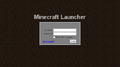 The first Minecraft launcher.
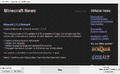 The fifth Minecraft launcher version 1.6.


.png)


