The '''''Minecraft'' launcher''' is the login and downloader front-end to the stand-alone client. It is responsible for downloading the main Java packages, including '''[[minecraft.jar]]''', which holds the code and resources of the game such as textures, and [http://lwjgl.org LWJGL]. It also acts somewhat like a basic and easily bypassable copy-restriction by forcing the user to login to a paid account when running for the first time. It is possible to use the launcher to run versions of ''[[Minecraft]]'' from nearly any era, however some versions are still not included on the launcher, such as [[Indev]], [[Minecraft 2.0]] and any of the [[Beta 1.9-pre1|Beta 1.9 pre-releases]]. The current launcher is the sixth launcher for ''Minecraft'', and the second that was built to automatically update itself.
== Launch ==
[[File:2016LauncherLogin.png|right|thumb|The login screen for launchers without previously logged-in users.]]
Every time the launcher is executed, it checks a specific directory where ''Minecraft'' stores its files called [[.minecraft]]. It checks a file called "launcher_profiles.json" for login credentials. If the file does not exist, is corrupt, or no user is logged in, the user must login with a valid premium account, otherwise the user will be directed to play the Demo version or purchase the game.
When logging in, the launcher will first try to verify the login. If a valid "launcher_profiles.json" file exists but there is no Internet connection, the launcher will offer a "Play offline" mode if a player was logged in when it was last closed. If the connection is successful, the launcher will then, depending on profile options, compare the latest version in the latest "versions" directory to the latest version reported by the server. If the selected version does not exist or the latest installed version is outdated when "Use latest version" is selected in the profile, the launcher will download all ''Minecraft'' components and Java binary files. It will also synchronize everything in the Assets folder (see [[Resource pack]]).
Finally, upon a successful update or installation, the launcher will execute the Minecraft jar (via "javaw.exe", Oracle's Java Virtual Machine executable.) It is possible however for there to be missing ".jar" files, in which case the launcher will attempt to replace the missing files automatically but will stop if there is no connection.
Currently, the ''Minecraft'' launcher supports 57 languages.
{{-}}
== Features ==
{{anchor|Version Control}}
<!--The anchor for the Version Control page. Please move this with the version control information or update that page if this one splits.-->
=== Launcher ===
* Manage multiple profiles (stored in "launcher_profiles.json"). Each profile can control:
** Game version. Includes access to outdated development builds and previous releases. You can also add older/custom versions manually.<ref>{{tweet|dinner|344164561701724160}}</ref>
** Mojang account used to play the game
** Command line arguments for Java (such as heap size)
** Game Directory (where the game files are saved on disk)
** Edit profile pictures or custom made ones
* The launcher doesn't store your password locally. Instead of this, it uses a 'refresh token'
* The launcher supports multiple instances (as the game also does)
* Automatic updates for launcher
* Ability to update libraries, such as [[LWJGL]]
* Offline mode. (The first time launch requires an Internet connection to download required resources)
* 57 Languages avaliable
* Crashes can be reported to Mojang, through [[Hopper (crash utility)|Hopper]]
* Crashes are indexed through a database for information on how to fix the issue
* Launcher Settings
* Switching Accounts or logging off
* Changing Skins
* Downloads servers on versions
* Help button
* Shows you the launcher version information when you click the launcher version
=== Time Machine ===
[[File:HowtoOldVersion2016.png|thumb|300x300px|A profile with Alpha and Beta versions enabled]]
The Minecraft launcher has the ability to play old [[Alpha]] and [[Beta]] versions of the game. Currently, snapshots, Alpha, Beta, and all Release versions are available to play. Four [[Pre-classic]] versions, four [[Classic]] versions, and an [[Infdev]] version are already added under the names "old-alpha version".<ref>{{tweet|dinner|364762596387205120}}</ref>
However, [[Indev]] is still missing.
[https://docs.google.com/spreadsheets/d/12SQkNnsYK_vANPcdn7FKrFn5RHcneAfOYmjoNYMpHzQ/pubhtml Progress] *note: as of 1.10.2
To enable the old versions either click the "Launch Options" then turn the "Historical Versions" on then open your profile or make a new one, next select any of Alpha/Beta versions on the Version box then click "Save" button.
However, these versions are very out of date and may be unstable. Any bugs, glitches, missing features, or crashes that result from instability will never be resolved as only later versions are supported. Mojang strongly recommends that you play them in separate directories than your other saves to avoid corruption.<ref>https://help.mojang.com/customer/portal/articles/1475923-changing-game-versions</ref>
{{-}}
=== Skins ===
[[File:ChangingSkinLauncher.png|thumb|Skin options in the launcher]]
You can change or add your custom skin within the Minecraft Launcher. To change or add your skin click the "Skins" button, then click the "Browse" button to navigate through your file system for your skin file. The file must have a resolution of 64×64 in order for the launcher to accept it as a skin file. Additionally, the skin file must be in a <code>.png</code> format. After you have found the skin file, click the "Save" button to confirm your in-game skin.
* You can reset your skin to the Steve or Alex defaults by clicking "Click to reset".
* You can choose between player models - either Classic (Steve) or Slim (Alex).
=== Profiles ===
When you open the launcher for first time, it creates a profile that selects the latest version of Minecraft - it cannot be removed.
However, you may create a game profile of your own in the launcher. Click on the "Launch Options" button, then click "Add New" to create one. After this, name your profile as you want it. If you leave it, it will be named "Unnamed Configuration". Then, optionally, select a profile picture from the launcher or a custom one. However, it must be a 128×128 <code>.png</code> picture. Select the version you wish to play, and click "Save" to confirm your profile. If you want to edit a profile, just click it. The same applies if you wish to delete a profile. Simply click the profile you want to delete and then click the "Delete [X]" button to remove it.
* [[File:2016LauncherProfileSettings.png|thumb|Profile settings in the launcher]]You can download server versions by clicking "Download Server".
* If you want to resize the game, turn "Resolution" on to change the game window size.
* You can turn "Advanced Settings" on to show more profile options.
* If you want to change the <code>.minecraft</code> file path, turn the on the "Game directory" option. Now, navigate to the folder where you wish to relocate the <code>.minecraft</code> folder. You can also open the Minecraft profile by clicking the green arrow-shaped "Go to folder" button.
* If you turned "Snapshot Versions" on, it creates a "Latest Snapshot" profile automatically.
* You can manually set a [http://logging.apache.org/log4j/2.x/manual/configuration.html logging configuration] (see [http://wiki.vg/Debugging the Debugging article on wiki.vg] for more info)
Beginning with the launcher released with [[1.6.1|Minecraft 1.6.1]], there are other commands for the launcher. These can be seen by running <code>java -jar Minecraft.jar -help</code>.
The new (2.0) launcher has a command-line parameter to change the working directory from <code>.minecraft</code> to any directory of the user's choice: <code>Minecraft_staging.exe --workDir "D:\Users\Administrator\AppData\Roaming\.minecraft"</code>. This is especially helpful for users who would like to keep their <code>.minecraft</code> folder off a certain drive, for example, their solid-state drive. The <code>--workDir</code> parameter is available for Windows, Linux, and macOS.
{{-}}
==History==
{{History|alpha}}
{{History||1.0.0|Initial release. In this version users can choose not only the current version but also [[Infdev]].
|The client requires an internet connection on the first run and for updates, but after that the game supports playing offline.
|Command line arguments are accepted to launch the game. Using the format <code>java -cp Minecraft.jar net.minecraft.LauncherFrame ''username'' ''password''</code> will allow login without joining a server, while the format <code>java -cp minecraft.jar net.minecraft.LauncherFrame ''username'' ''password'' ''serveraddress'':''portnumber''</code> allows joining a server.}}
{{History||1.2.2|Command line arguments format changed.}}
{{History|beta}}
{{History||1.3|Released in February 21, 2011.<ref>http://notch.tumblr.com/post/3428176687/server-downtime-and-a-new-launcher</ref> A technical sneak preview was published by Notch on February 18, 2011.<ref>{{tweet|notch|38621269331025921}}</ref>Added capability of automatic login to the game and/or server by command line arguments.|Added smarter update system that only updates changed files, prompts the user to update, allows HTTPS logins for a more secure connection, and offers general UI improvements.
|Link to the ''Minecraft'' install directory for easy access.
|Add ''Force Update'' button under the ''Options'' dialog.
|The launcher also featured an inline "changelog" via a [http://mcupdate.tumblr.com/ Tumblr] called [[MCUpdate]], and supports command-line arguments.<ref>http://mcupdate.tumblr.com/post/3427294253/welcome-to-the-new-minecraft-launcher</ref>|Added the new Minecraft logo.|Added official links, community links and Mojang on Twitter links.|}}
{{History|release}}
{{History||1.2.1|Properly selects 64-bit Java installations for Mac OS X users.<ref>http://www.mojang.com/2012/03/minecraft-1-2-is-out/</ref>}}
{{History||1.3.2|Added ability to launch [[demo mode]] for non-premium users.}}
{{History||1.6.1|snap=13w16a|New launcher added. See launcher history below.}}
! scope="col" style="width: 160px;" data-sort-type="number" | Launcher version
! scope="col" style="width: 120px;" data-sort-type="date" | Release date
! scope="col" class="unsortable" | Summary of changes
|-
|{{Text anchor|2.0.934}}
|June 13, 2017
|
* Unknown
|-
|{{Text anchor|2.0.932-stage}}
|June 13, 2017
|
* Unknown
|-
|{{Text anchor|2.0.895}}
|May 30, 2017
|
* New translations & a fix for those stuck/crashing on "Preparing"<ref>{{tweet|dinnerbone|869457953350352898|A new version of the Minecraft Launcher will be going out shortly, it has new translations & a fix for those stuck/crashing on "Preparing"|May 30, 2017}}</ref>
|-
|{{Text anchor|2.0.847}}
|April 10, 2017
|
* Unknown
|-
|{{Text anchor|2.0.834 (macOS)}}
|March 10, 2017
|
* Unknown
|-
|{{Text anchor|2.0.833}}
|March 10, 2017
|
* Unknown
|-
|{{Text anchor|2.0.806}}
|February 9, 2017
|
* Unknown
|-
|{{Text anchor|2.0.774-stage}}
|February 8, 2017
|
* Unknown
|-
|{{Text anchor|2.0.760-stage}}
|February 3, 2017
|
* Unknown
|-
|{{Text anchor|2.0.757-stage}}
|February 3, 2017
|
* Unknown
|-
|{{Text anchor|2.0.726-stage}}
|February 1, 2017
|
* Fixed some issues with the update process.
|-
|{{Text anchor|2.0.710-stage}}
|January 31, 2017
|
* Fixed some issues with mods.
|-
|{{Text anchor|2.0.700-stage}}
|January 31, 2017
|
* Unknown
|-
|{{Text anchor|2.0.673-stage}}
|January 27, 2017
|
* Unknown
|-
|{{anchor|1.6.73}}{{Text anchor|1.6.73-j}}
|January 26, 2017
|
* Unknown
|-
|{{Text anchor|2.0.663-stage}}
|January 25, 2017
|
* No security popups for Mac anymore.
|-
|{{Text anchor|2.0.581-stage}}
|January 18, 2017
|
* Added a launcher version information tab, support for Linux.
|-
|{{Text anchor|2.0.580-stage}} (macOS)
|January 18, 2017
|
* Added a launcher version information tab.
|-
|{{Text anchor|2.0.511-stage}} (macOS)
|January 3, 2017
|
* Changed font from the ''Minecraft'' default to Segoe UI.
|-
|{{Text anchor|2.0.510-stage}}
|January 3, 2017
|
* Changed font from the ''Minecraft'' default to Segoe UI.
* Fixed a bug where the resolution was 2304×1202 regardless of launch option or window size.
|-
|{{Text anchor|2.0.497-stage}}
|December 29, 2016
|
* Added more languages.
|-
|{{Text anchor|2.0.490-stage}}
|December 27, 2016
|
* Unknown
|-
|{{text anchor|2.0.465-stage}} (macOS)
|December 8, 2016
|
* Unknown
|-
| {{text anchor|2.0.464-stage}}
|December 8, 2016
|
* Unknown
|-
| {{text anchor|2.0.455-stage}}
|December 7, 2016
|
* Unknown
|-
| {{text anchor|2.0.447-stage}}
|December 6, 2016
|
* Fixed a crash when you launched any minecraft.jar except for "1.11 Latest release" or lower.{{cn}}
|-
| {{text anchor|2.0.429-stage}}
|December 1, 2016
|
* Unknown
|-
| {{text anchor|2.0.425-stage}}
|November 30, 2016
|
* Unknown
|-
| {{text anchor|2.0.24-stage}}
|November 29, 2016
|
* Unknown
|-
| {{text anchor|2.0.414-stage}}
|November 28, 2016
|
* Fixed a bug where the Launcher could get stuck on 'Loading...' everywhere.<ref>https://twitter.com/Dinnerbone/status/803235460386537472</ref>
|-
| {{text anchor|2.0.387-stage}}
|November 25, 2016
|
* Added language selection
|-
| {{text anchor|1.6.70}}
|November 17, 2016
|
* Unknown
|-
|2.0.320-stage
|November 4, 2016
|
* Unknown
|-
| {{text anchor|2.0.282-stage}}
| November 2, 2016<ref>https://www.reddit.com/r/Minecraft/comments/5apvpl/help_us_test_the_new_minecraft_launcher_todays/?st=iv1jq8z1&sh=7908cfe7</ref>
|
* Now supports running multiple instances of ''Minecraft'' at the same time
* Can now be kept open while the game is running
* Now backs ups "launcher_profiles.json" before migrating settings to new launcher
* Made launch options slightly smaller
* The button to add a new launch option is now at the top of the list
* "Keep launcher open" and "Show game log" are now separate settings
* Multiple bug fixes:
** Fixed running modded versions
** Resolution setting should now work properly
** Fixed an issue where opening the game directory would give an error message even when it worked
** Pressing {{key|Del}} in input fields no longer removes the rest of the line
** Pressing {{key|Tab}} on the news page no longer messes with the news carousel
** Fixed a crash that sometimes happened when the game closed
** Selecting input with your mouse and hitting backspace on the keyboard should now properly delete the input
** The version information page no longer selects all text when you click it
* New launcher iteration for testing initially for Windows and macOS
* Runs as a native application that no longer requires Java
* Interface redesign
|-
| {{text anchor|1.6.66}}
| October 24th, 2016
|
* Now warns the player when their profile has been opened in the [https://www.reddit.com/r/Minecraft/comments/59b7m0/help_us_test_the_new_minecraft_launcher_check_the/ new launcher].
|-
| {{text anchor|1.6.61}}
| March 3rd, 2016
|
* Game Session ID is now hidden in the game output tab when launching the game, now says <code>Session ID is <censored></code>
|-
| {{text anchor|1.6.59}}
| February 25th, 2016
|
* Unknown
|-
| {{text anchor|1.6.57}}
| February 24th, 2016
|
* Unknown
|-
| {{text anchor|1.6.51}}
| February 4th, 2016
|
* Unknown
|-
| {{text anchor|1.6.48}}
| October 9th, 2015
|
* Unknown
|-
| {{text anchor|1.6.44}}
| September 11th, 2015
|
* Added information about new OSX Installer. (''Showing only on OSX'')
|-
| {{text anchor|1.6.39}}
| September 8th, 2015
|
* Fixed Launcher window closing.
* Fixed closing the "Profile Editor" window.
* Minor changes.
|-
| {{text anchor|1.6.19}}
| July 24, 2015
|
* Added Windows 10 support
* Added new argument ''-winTen''
|-
| {{text anchor|1.6.13}}
| July 1, 2015
|
* Launcher now creating folder "''server-resource-packs''" in game directory.
* {{bug|MCL-2300}} – Extra Fonts installed in Windows 8.1 stops Launcher running
* {{bug|MCL-3013}} – Launcher: "Playing offline"
* {{bug|MCL-3171}} – Checksum mismatch for realms 1.5.8
* {{bug|MCL-3257}} – < Forgotten in the Client
|}
|-
| {{text anchor|1.5.2}}
| August 19, 2014
|
* Re-launching Minecraft with a user used previously will override the game output tab for that user
|-
| {{text anchor|1.5.1}}
| July 29, 2014
|
* Fix launcher stuck on Loading...<ref>{{tweet|Dinnerbone|494220782244208640}}</ref>
* Fixed: {{bug|MCL-2494}} – Play and Log out buttons grayed out on first run of launcher / launcher update
|-
| {{text anchor|1.5}}
| July 28, 2014
|
* ''Development Console'' tab renamed to ''Launcher Log''
* You can now run multiple instances of ''Minecraft'' at once, provided they're on different users
* ''Play'' button renamed to ''Already Playing...'' if ''Minecraft'' is open while looking at launcher
* New tab called ''Game Output (yourusername)'' appears after launching minecraft
|-
| {{text anchor|1.4.7}}
| July 25, 2014
|
* Prepend libraries instead of appending(?)
|-
| {{text anchor|1.4.6}}
| July 25, 2014
|
* Added some command-line switches on the Profile Editor(?)
* Added version inheritance<ref>{{tweet|Dinnerbone|492715318645882880}}</ref>
|-
| {{text anchor|1.4.5}}
| July 25, 2014
|
* Added a "Switch users" button to make switching users easier
* Another attempt to fix {{bug|MCL-2494}}, but the fix didn't work.
|-
| {{text anchor|1.4.4}}
| May 19, 2014
|
* Attempt to fix {{bug|MCL-2494}}, but the fix didn't work.
* Fixed: {{bug|MCL-2564}} – No alpha or Beta versions in launcher (even local ones)
|-
| {{text anchor|1.4.2}}
| May 2, 2014
|
* Loading bar displays file currently being downloaded
* Fixed: {{bug|MCL-2350}} – Slowly eats large amounts of heap
* Removed tab ''Local Version Editor (NYI)''
* Auto cleanup unused libraries
|-
| {{text anchor|1.3.11}}
| March 12, 2014
|
* Update Notes website frame uses JavaFX if available
* Profiles are now displayed in alphabetical order
|-
| {{text anchor|1.3.10}}
| February 13, 2014
|
* Libraries use SHA-1 for validation
|-
| {{text anchor|1.3.9}}
| January 24, 2014
|
* Updated bug tracker links
|-
| {{text anchor|1.3.8}}
| January 8, 2014
|
* Added "(Why can I only play demo?)" link for demo accounts, under the "play demo" button. The link redirects you [https://help.mojang.com/customer/portal/articles/1218766-can-only-play-minecraft-demo?ref=launcher here]
|-
| {{text anchor|1.3.7}}
| December 12, 2013
|
* Unknown
|-
| {{text anchor|1.3.6}}
| December 5, 2013
|
* Fixed: {{bug|MCL-1895}} – Cannot play offline in 1.3.5 version - immediately gamecrash when launching
|-
| {{text anchor|1.3.5}}
| December 4, 2013
|
* Rearranged the assets folder for the new Assets Management System.<ref>{{tweet|Dinnerbone|408246271921901568}}</ref>
|-
| {{text anchor|1.3.4}}
| November 26, 2013
|
* Faster downloading of some big files.<ref>{{tweet|dinner|405366855785021440}}</ref>
|-
| {{text anchor|1.3.3}}
| November 20, 2013
|
* (Possible) Bridging of Mojang and Twitch accounts.<ref>{{tweet|dinner|403111179859812352}}</ref>
* Fixed {{bug|MCL-1241}} - Cannot play offline in 1.1.1
|-
| {{text anchor|1.1.1}}
| July 19, 2013
|
* New-look launcher and login screen
* Launcher now closes automatically when game window opens
|-
| {{text anchor|1.0.10}}
| July 12, 2013
|
* Further support for Hopper
* Client crashes can be flagged as Public
** Nothing is currently done with these
* Profiles have the option to disable Hopper support
* Reporting directly to the bug tracker is only allowed if Hopper is turned off or the launcher can't connect to Hopper
** Hopper will not send crash report to bug tracker if the game is modded
|-
| {{text anchor|1.0.9}}
| July 10, 2013
|
* Added support for the new crash-reporting system, Hopper<ref>http://hopper.minecraft.net/</ref>
** Any client crash will automatically submit the crash report
|-
| {{text anchor|1.0.8 OS X}} (Re-upload)<ref>{{tweet|dinner|354595929925496832}}</ref>
| July 9, 2013
|
* Fixes to the launcher having trouble playing 1.6.2 on OS X 10.5.8 (Leopard)
|-
| 1.0.8 OS X (Re-upload)<ref>{{tweet|dinner|354351963288248321}}</ref>
| July 8, 2013
|
* Fixes to the launcher having trouble playing 1.6.2 on OS X 10.5.8 (Leopard)
|-
| {{text anchor|1.0.8}}
| July 2, 2013
|
* The launcher now has a high-definition icon{{cn}}
* Mac OS X 10.5.8 users have had ''Minecraft'' 1.6.1 disabled pending a LWJGL fix, however 1.5.2 is not affected<ref>{{tweet|dinner|352109843731070976}}</ref>
|-
| {{text anchor|1.0.7}}
| July 2, 2013
|
* Added ability to disable automatic login<ref>{{bug|MCL-590}}</ref>
* {{bug|MCL-587}} – Full game can be played with non-premium account
* {{bug|MCL-600}} – Launcher gives wrong message when you sign in with username instead of email.
|}
|-
| {{text anchor|1.0.2}}
| June 27, 2013
|
* Unknown
|-
| {{text anchor|1.0.1}}
| June 26, 2013
|
* Yggdrasil authentication re-deployed
** Fixed: {{bug|MCL-568}} – Migrated Account - Can't login in 1.6 prerelease on 1.0.1 launcher
|-
| {{text anchor|1.0.0}}
| June 26, 2013
|
* Launcher downgraded to 1.0.0
* Disabled Yggdrasil because of login error
|-
| 1.0.1
| June 26, 2013
|
* Enabled Yggdrasil, The new auth system
* More secure and much more featureful.
|-
| {{text anchor|1.0}}
| June 25, 2013
|
* Unknown
|-
| {{text anchor|0.9.5}}
| June 18, 2013
|
* Unknown
|-
| {{text anchor|0.9.4}}
| June 18, 2013
|
* Added "New Profile" and "Edit Profile" Buttons to the profile selection panel
|-
| {{text anchor|0.9.3}}
| June 14, 2013
|
* Unknown
|-
| {{text anchor|0.9.2}}
| June 13, 2013
|
* Unknown
|-
| {{text anchor|0.9.1}}
| June 10, 2013
|
* Fixed: {{Bug|MCL-412}} – OS X: Exception in thread "main" java.lang.NoClassDefFoundError: net/minecraft/client/main/Main
|-
| {{text anchor|0.9}}
| June 10, 2013
|
* Now includes a Profile Editor tab.
** Choosing the game's version can only be done by double clicking your profile and changing the version in the drop down list.
* Changes to the Version Selector area.
|-
| {{text anchor|0.8.3}}
| June 7, 2013
|
* Unknown
|-
| {{text anchor|0.8.2}}
| May 27, 2013
|
* Unknown
|-
| {{text anchor|0.8.1}}
| May 21, 2013
|
* Client window now uses [[Crafting Table]] icon for main window when a snapshot build is selected; Launcher window still uses [[Grass Block]] icon
** Selecting release builds on Windows currently uses the basic Java icon
|-
| {{text anchor|0.8}}
| May 20, 2013
|
* Unknown
|-
| {{text anchor|0.7.2}}
| May 15, 2013
|
* Unknown
|-
| 0.7
| May 13, 2013
|
* Launcher downgraded to 0.7
|-
| {{text anchor|0.7.1}}
| May 4, 2013
|
* Unknown
|-
| {{text anchor|0.7}}
| May 2, 2013
|
* Unknown
|-
| {{text anchor|0.6}}
| April 25, 2013
|
* Unknown
|-
| {{text anchor|0.5}}
| April 23, 2013
|
* Added 1.5.1 to the list of available versions in the launcher
|-
| {{text anchor|0.4}}
| April 23, 2013
|
* Re-enabled crash reporting
|-
| {{text anchor|0.3}}
| April 22, 2013
|
* Added ''Local Version Editor (NYI)'' tab to the launcher
* Added window to check server status
* Small bug fixes
|-
| {{text anchor|0.2}}
| April 19, 2013
|
* Added ''Development Console'' tab to the launcher
* Fixed starting game trouble
|-
| {{text anchor|0.1}}
| April 18, 2013
|
* [[.minecraft]] directory structure is changed:
** "assets" folder; stores resources such as language packs and sounds.
*** All [[Music Discs|music discs]] now use .ogg format instead of .mus format.
** "library" folder; stores Java libraries such as LWJGL and jinput.jar.
** "versions" folder; there are file "versions.json" (meta data) and folders that stores [[minecraft.jar]] for each versions (but its name is same as its version. e.g. for 13w16a, "versions/13w16a/13w16a.jar").
* The launcher is an executable.
|}
== Gallery ==
<gallery>
File:AlphaLauncher.png|The first ''Minecraft'' launcher.
File:Launcher-1.0.png|The second ''Minecraft'' launcher. You can see old ''Minecraft'' logo.
File:Oldlauncher2.png|The third ''Minecraft'' launcher.
* In the top left corner a barely visible button can be found which randomly shows either a Creeper face or a shrug meme ¯\_(ツ)_/¯. It glows white when clicked, but has no use at all
** The Creeper face as well as the meme were used for the language selection menu during the beta phase of the launcher, but when a globe was added instead both were simply moved downwards to be kept as an Easter egg
* If you stay long enough on the "Play" button, random mobs will appear on the right side of the window.
== References ==
{{reflist}}
== See also ==
* [[Programs and Editors]]
{{minecraft}}
[[de:Minecraft Launcher]]
[[es:Ejecutable de Minecraft]]
[[fr:Launcher]]
[[pt-br:Minecraft launcher]]
[[ja:Minecraftランチャー]]
[[nl:Minecraft launcher]]
[[ru:Лаунчер]]
[[zh:启动器]]
Wersja z 14:13, 10 sie 2017
Artykuł w budowie!
Trwa budowa strony Vatharannen/brudnopis.
Jeśli chcesz, możesz pomóc przy jej tworzeniu.
Jesteś teraz na stronie brudnopisu użytkownika VaderVCD. Możesz przejrzeć moje zapiski.
Jeśli ta strona jest pusta, to znaczy, że aktualnie nie pracuję nad większą edycją/nową stroną.
The Minecraft launcher is the login and downloader front-end to the stand-alone client. It is responsible for downloading the main Java packages, including minecraft.jar, which holds the code and resources of the game such as textures, and LWJGL. It also acts somewhat like a basic and easily bypassable copy-restriction by forcing the user to login to a paid account when running for the first time. It is possible to use the launcher to run versions of Minecraft from nearly any era, however some versions are still not included on the launcher, such as Indev, Minecraft 2.0 and any of the Beta 1.9 pre-releases. The current launcher is the sixth launcher for Minecraft, and the second that was built to automatically update itself.
Every time the launcher is executed, it checks a specific directory where Minecraft stores its files called .minecraft. It checks a file called "launcher_profiles.json" for login credentials. If the file does not exist, is corrupt, or no user is logged in, the user must login with a valid premium account, otherwise the user will be directed to play the Demo version or purchase the game.
When logging in, the launcher will first try to verify the login. If a valid "launcher_profiles.json" file exists but there is no Internet connection, the launcher will offer a "Play offline" mode if a player was logged in when it was last closed. If the connection is successful, the launcher will then, depending on profile options, compare the latest version in the latest "versions" directory to the latest version reported by the server. If the selected version does not exist or the latest installed version is outdated when "Use latest version" is selected in the profile, the launcher will download all Minecraft components and Java binary files. It will also synchronize everything in the Assets folder (see Resource pack).
Finally, upon a successful update or installation, the launcher will execute the Minecraft jar (via "javaw.exe", Oracle's Java Virtual Machine executable.) It is possible however for there to be missing ".jar" files, in which case the launcher will attempt to replace the missing files automatically but will stop if there is no connection.
Currently, the Minecraft launcher supports 57 languages.
Features
Launcher
Manage multiple profiles (stored in "launcher_profiles.json"). Each profile can control:
Game version. Includes access to outdated development builds and previous releases. You can also add older/custom versions manually.[1]
Mojang account used to play the game
Command line arguments for Java (such as heap size)
Game Directory (where the game files are saved on disk)
Edit profile pictures or custom made ones
The launcher doesn't store your password locally. Instead of this, it uses a 'refresh token'
The launcher supports multiple instances (as the game also does)
The Minecraft launcher has the ability to play old Alpha and Beta versions of the game. Currently, snapshots, Alpha, Beta, and all Release versions are available to play. Four Pre-classic versions, four Classic versions, and an Infdev version are already added under the names "old-alpha version".[2]
However, Indev is still missing.
To enable the old versions either click the "Launch Options" then turn the "Historical Versions" on then open your profile or make a new one, next select any of Alpha/Beta versions on the Version box then click "Save" button.
However, these versions are very out of date and may be unstable. Any bugs, glitches, missing features, or crashes that result from instability will never be resolved as only later versions are supported. Mojang strongly recommends that you play them in separate directories than your other saves to avoid corruption.[3]
You can change or add your custom skin within the Minecraft Launcher. To change or add your skin click the "Skins" button, then click the "Browse" button to navigate through your file system for your skin file. The file must have a resolution of 64×64 in order for the launcher to accept it as a skin file. Additionally, the skin file must be in a .png format. After you have found the skin file, click the "Save" button to confirm your in-game skin.
You can reset your skin to the Steve or Alex defaults by clicking "Click to reset".
You can choose between player models - either Classic (Steve) or Slim (Alex).
Profiles
When you open the launcher for first time, it creates a profile that selects the latest version of Minecraft - it cannot be removed.
However, you may create a game profile of your own in the launcher. Click on the "Launch Options" button, then click "Add New" to create one. After this, name your profile as you want it. If you leave it, it will be named "Unnamed Configuration". Then, optionally, select a profile picture from the launcher or a custom one. However, it must be a 128×128 .png picture. Select the version you wish to play, and click "Save" to confirm your profile. If you want to edit a profile, just click it. The same applies if you wish to delete a profile. Simply click the profile you want to delete and then click the "Delete [X]" button to remove it.
If you want to resize the game, turn "Resolution" on to change the game window size.
You can turn "Advanced Settings" on to show more profile options.
If you want to change the .minecraft file path, turn the on the "Game directory" option. Now, navigate to the folder where you wish to relocate the .minecraft folder. You can also open the Minecraft profile by clicking the green arrow-shaped "Go to folder" button.
If you turned "Snapshot Versions" on, it creates a "Latest Snapshot" profile automatically.
Beginning with the launcher released with Minecraft 1.6.1, there are other commands for the launcher. These can be seen by running java -jar Minecraft.jar -help.
The new (2.0) launcher has a command-line parameter to change the working directory from .minecraft to any directory of the user's choice: Minecraft_staging.exe --workDir "D:\Users\Administrator\AppData\Roaming\.minecraft". This is especially helpful for users who would like to keep their .minecraft folder off a certain drive, for example, their solid-state drive. The --workDir parameter is available for Windows, Linux, and macOS.
Initial release. In this version users can choose not only the current version but also Infdev.
The client requires an internet connection on the first run and for updates, but after that the game supports playing offline.
Command line arguments are accepted to launch the game. Using the format java -cp Minecraft.jar net.minecraft.LauncherFrame usernamepassword will allow login without joining a server, while the format java -cp minecraft.jar net.minecraft.LauncherFrame usernamepasswordserveraddress:portnumber allows joining a server.
Released in February 21, 2011.[5] A technical sneak preview was published by Notch on February 18, 2011.[6]Added capability of automatic login to the game and/or server by command line arguments.
Added smarter update system that only updates changed files, prompts the user to update, allows HTTPS logins for a more secure connection, and offers general UI improvements.
Link to the Minecraft install directory for easy access.
Add Force Update button under the Options dialog.
The launcher also featured an inline "changelog" via a Tumblr called MCUpdate, and supports command-line arguments.[4]
Added the new Minecraft logo.
Added official links, community links and Mojang on Twitter links.
"assets" folder; stores resources such as language packs and sounds.
All music discs now use .ogg format instead of .mus format.
"library" folder; stores Java libraries such as LWJGL and jinput.jar.
"versions" folder; there are file "versions.json" (meta data) and folders that stores minecraft.jar for each versions (but its name is same as its version. e.g. for 13w16a, "versions/13w16a/13w16a.jar").
In the top left corner a barely visible button can be found which randomly shows either a Creeper face or a shrug meme ¯\_(ツ)_/¯. It glows white when clicked, but has no use at all
The Creeper face as well as the meme were used for the language selection menu during the beta phase of the launcher, but when a globe was added instead both were simply moved downwards to be kept as an Easter egg
If you stay long enough on the "Play" button, random mobs will appear on the right side of the window.
References
Przypisy
Poniżej znajduje się lista przypisów na tej stronie.


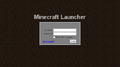 The first Minecraft launcher.
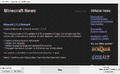 The fifth Minecraft launcher version 1.6.


.png)


